How to use the KINPASS Partner app, one task at a time.
Each topic below is a single task, laid out in the order you'd actually do it. Every step pairs a screenshot with a short instruction — the button or field to tap is boxed in red.
First time here
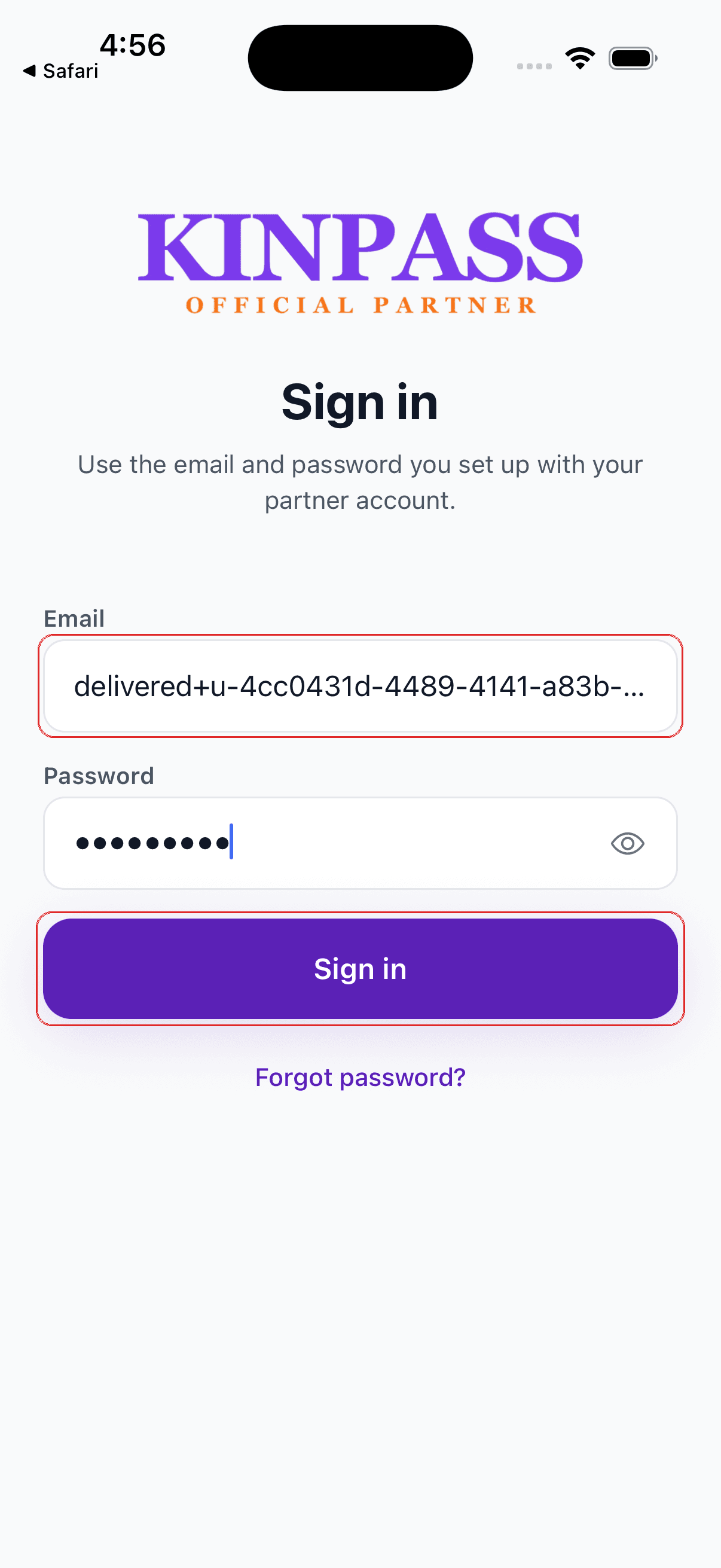
Sign in with your partner account
Open the app and type the email and password KINPASS set up for your business.
Forgot your password? Tap “Forgot password?” below the Sign in button. It opens a page in your browser to reset it.
Everything lives in five tabs
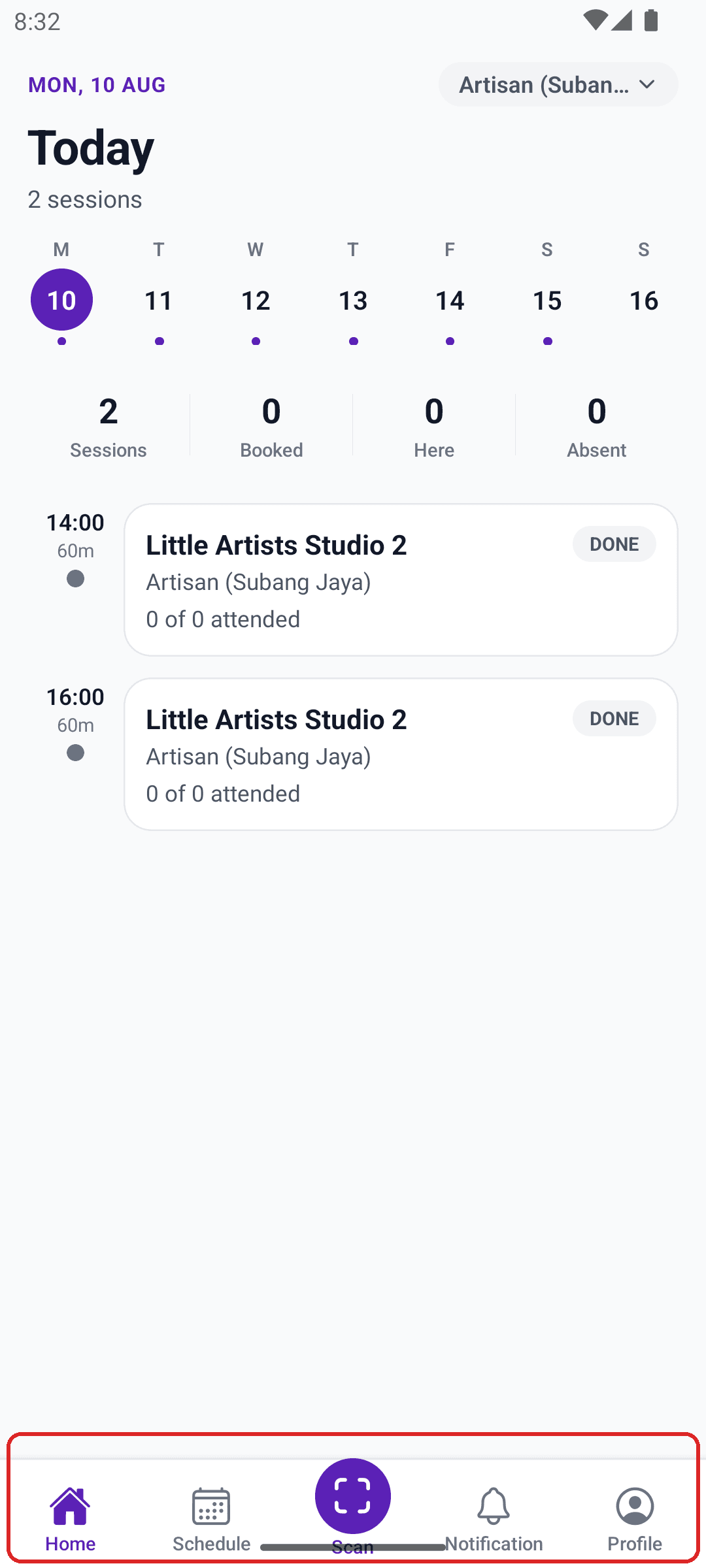
- Home is today's classes.
- Schedule is the week and month ahead.
- Scan checks people in with the camera.
- Notification is anything needing your attention.
- Profile holds branches, reviews, and earnings.
You can reach every task below from one of those five.
Every class
See what's running today
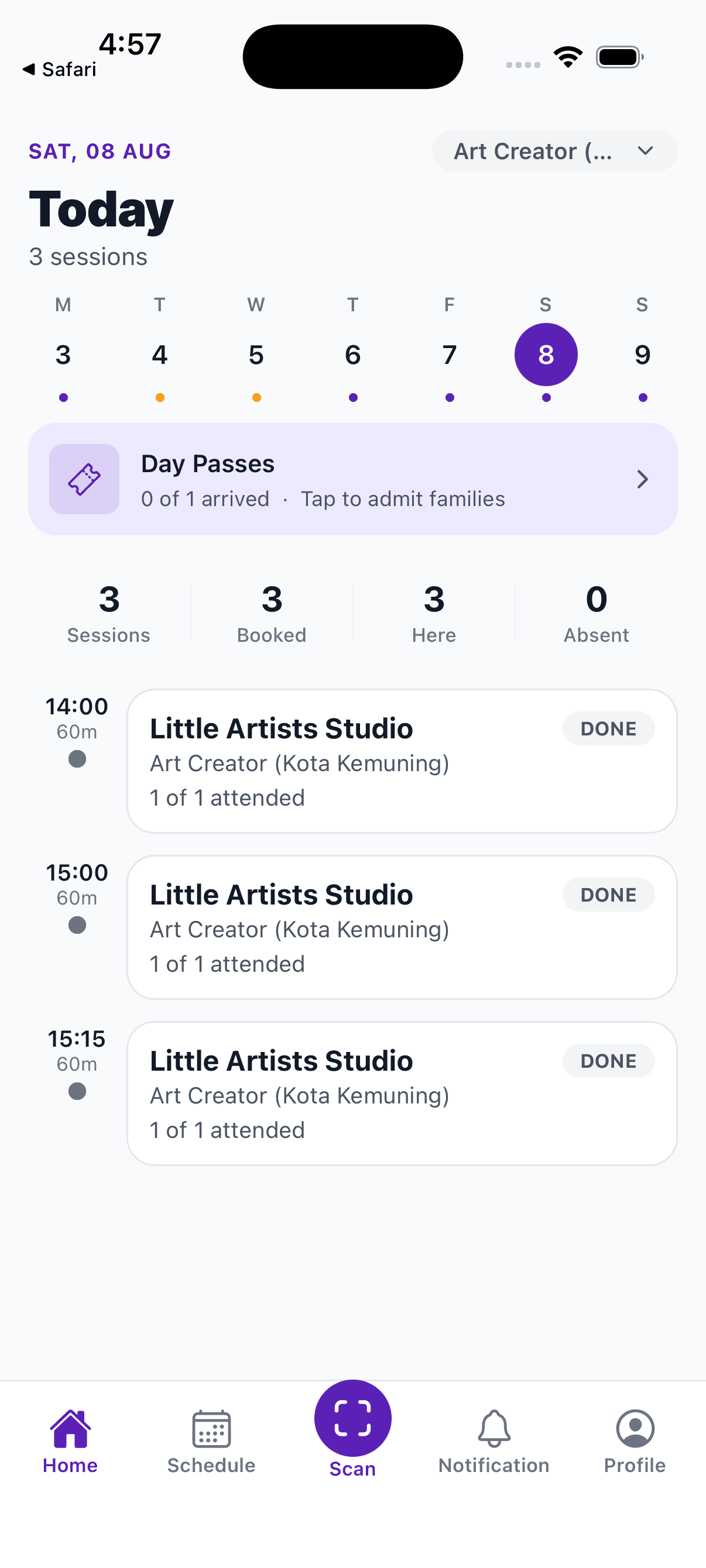
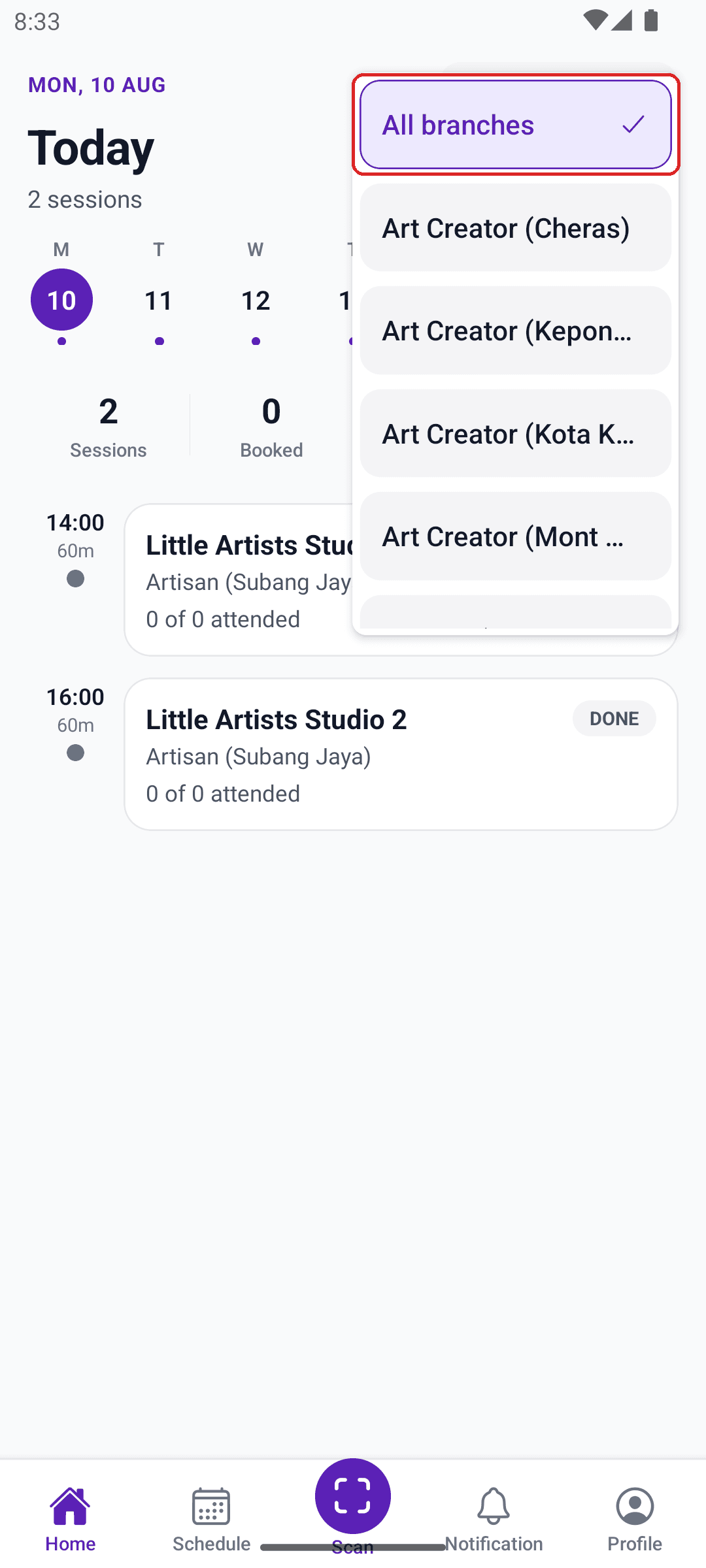
Tap Home. You land on Today: every class happening today, how many kids are booked, and how many have checked in.
The row of numbers under the dates is your day at a glance — sessions, booked, here, absent.
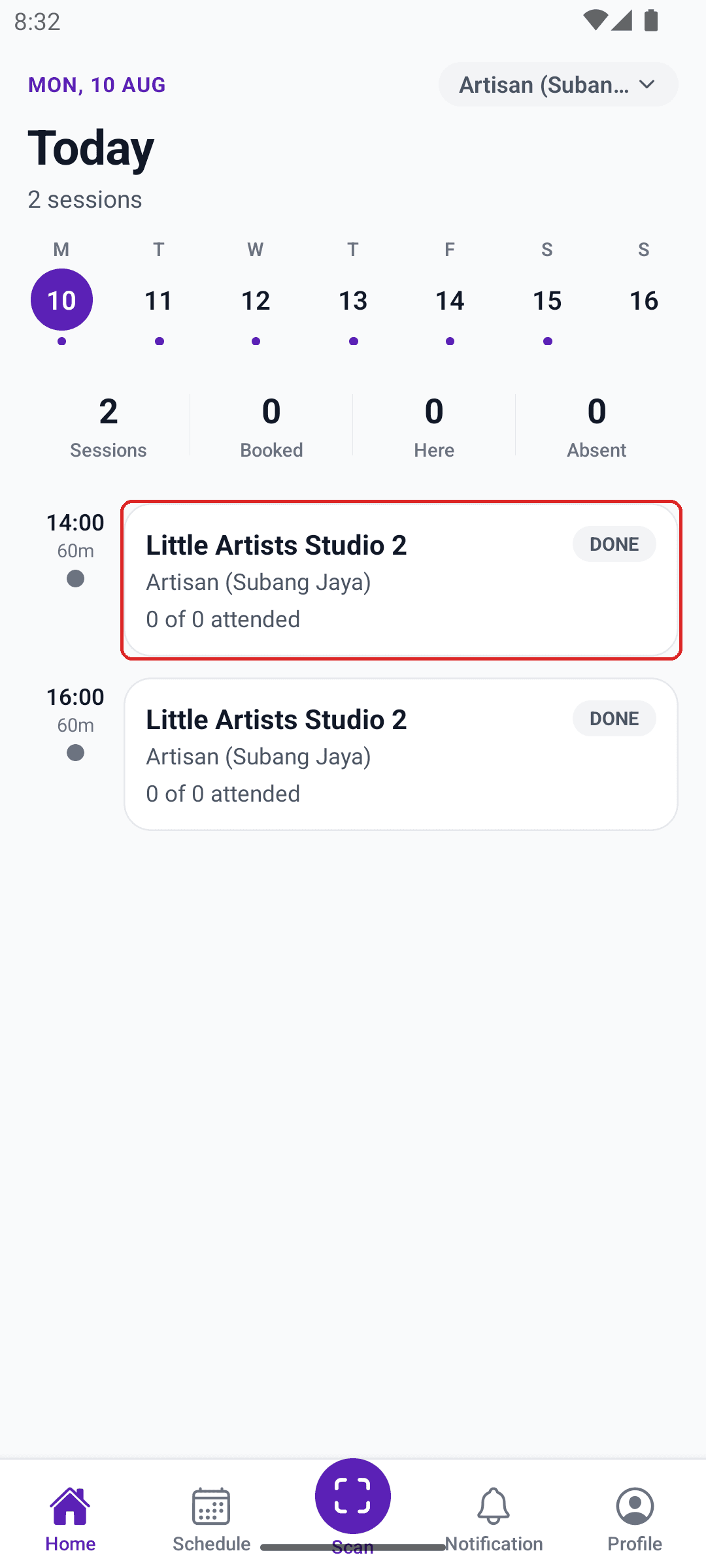
Tap a class to see who's booked
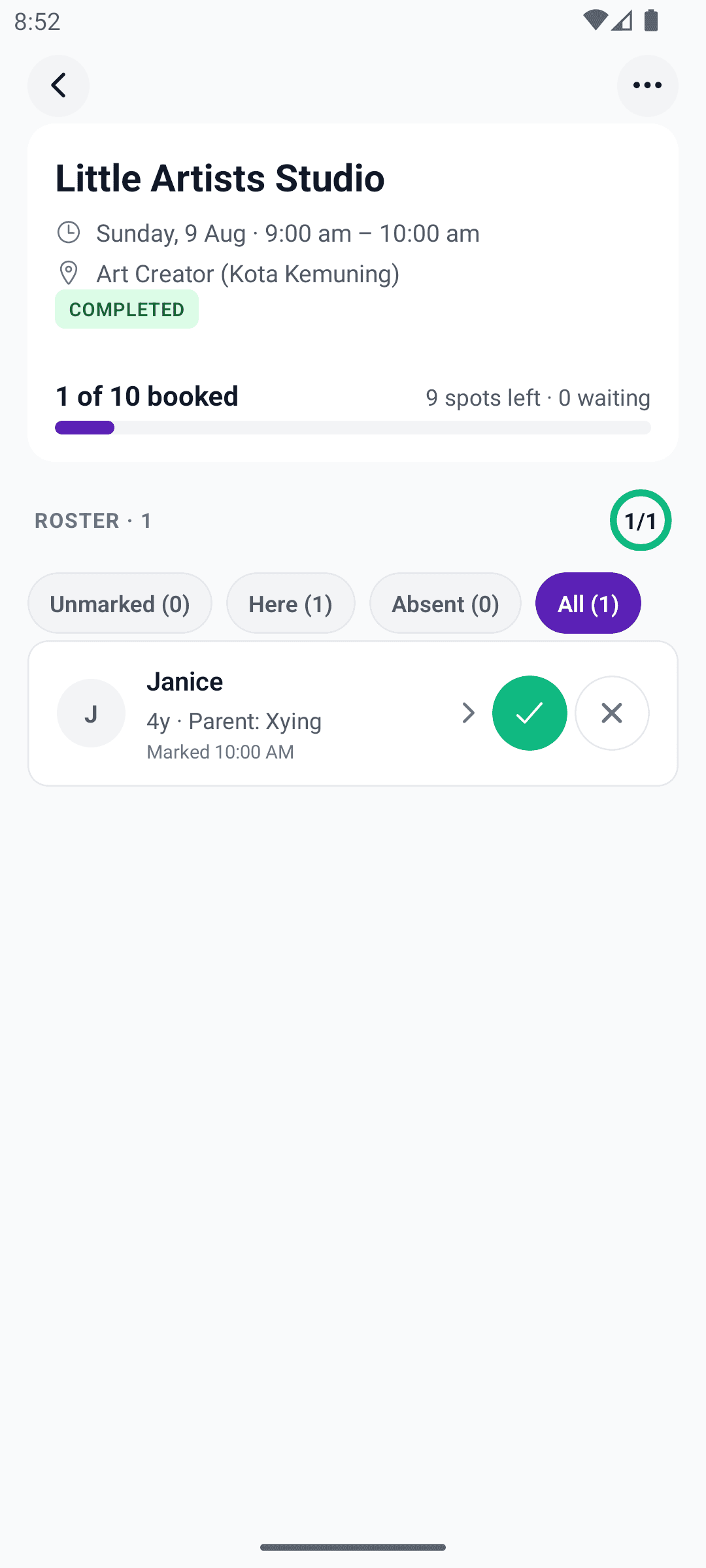
The class screen shows the time, branch, how many spots are booked, and every child on the roster.
This is your starting point for marking attendance, checking a child's emergency contact, and flagging an issue.
Mark attendance — three ways
Same job, three routes. Tick the roster if you have the class list in front of you. Scan if the parent has their phone out. Type the code if the camera won't cooperate.
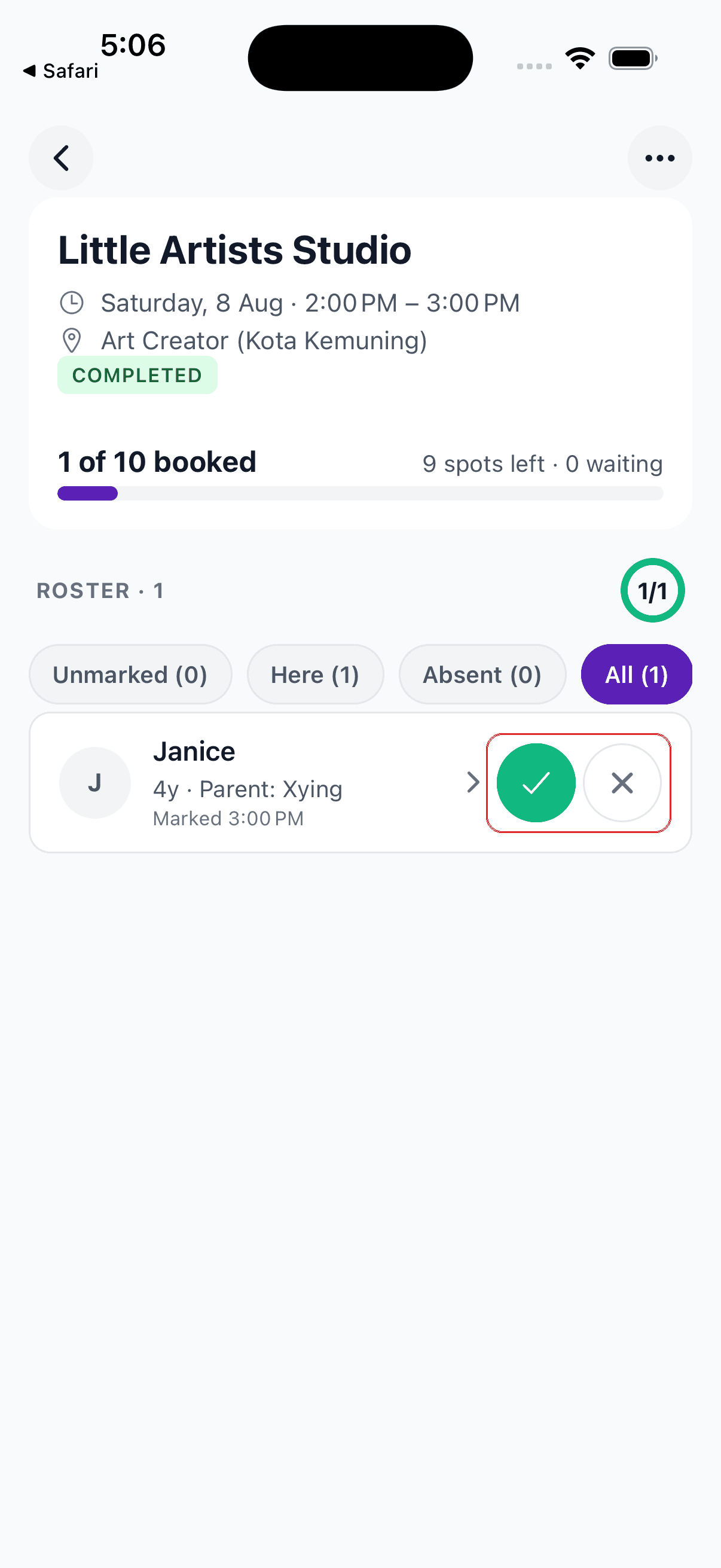
Tap the tick or the cross next to each name
Open today's class, find the child in the roster, then tap the green tick if they came or the cross if they didn't.
Attendance only opens shortly before the class starts — if the buttons look grey, it's too early to mark them yet.
Scan the code on the parent's phone
Tap Scan in the middle of the bottom bar, then hold the camera over the QR code on the parent's phone.
For a day pass, one scan checks in the whole group — parents and kids together. For a class booking, scanning checks in just the child.
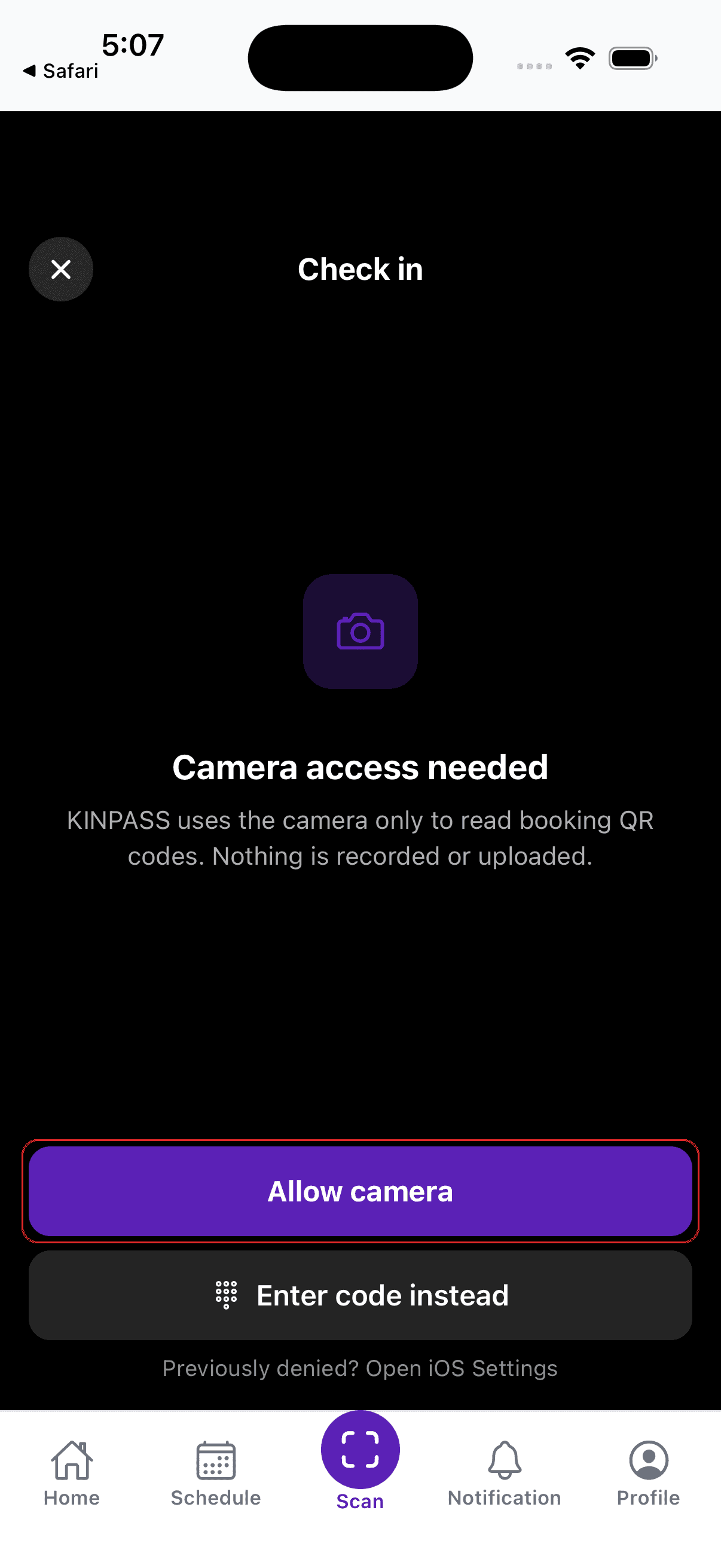
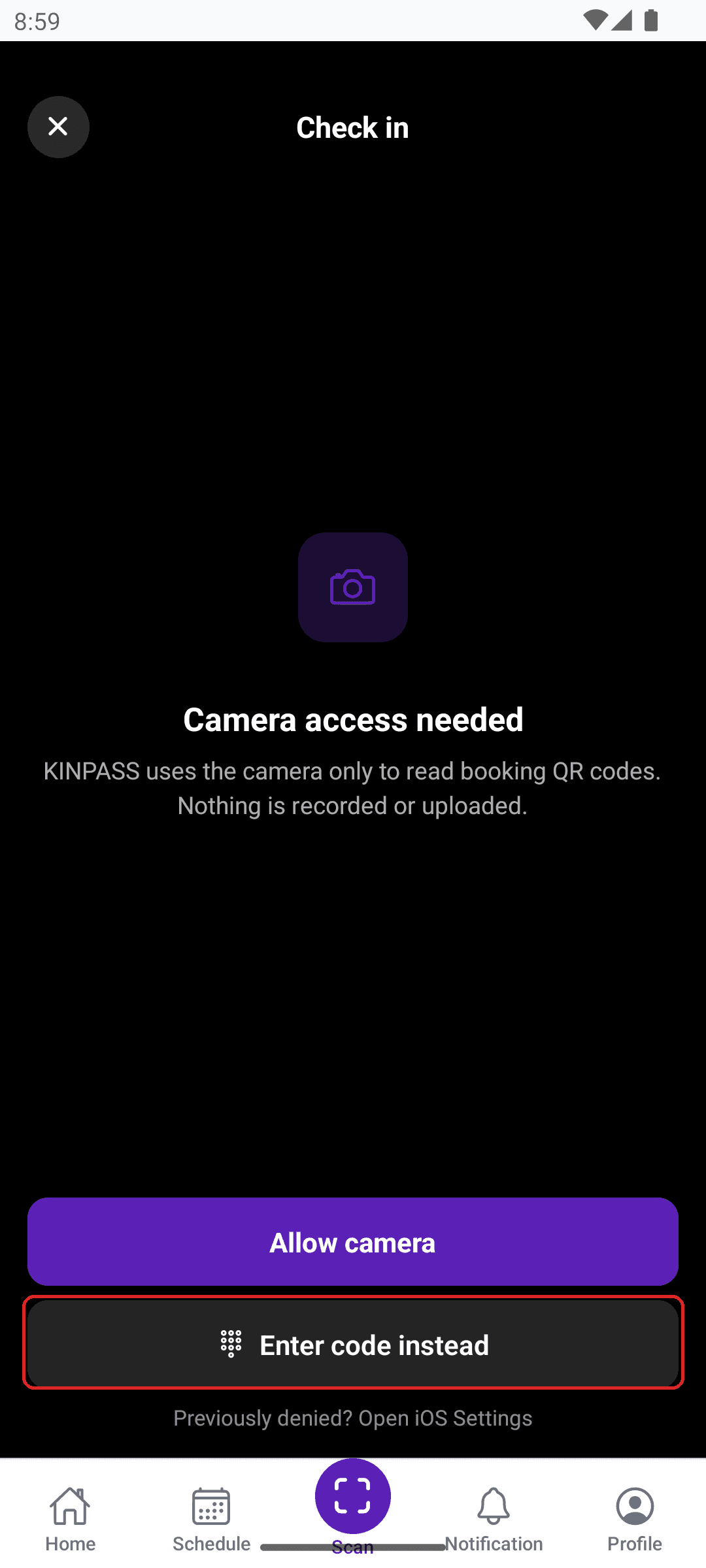
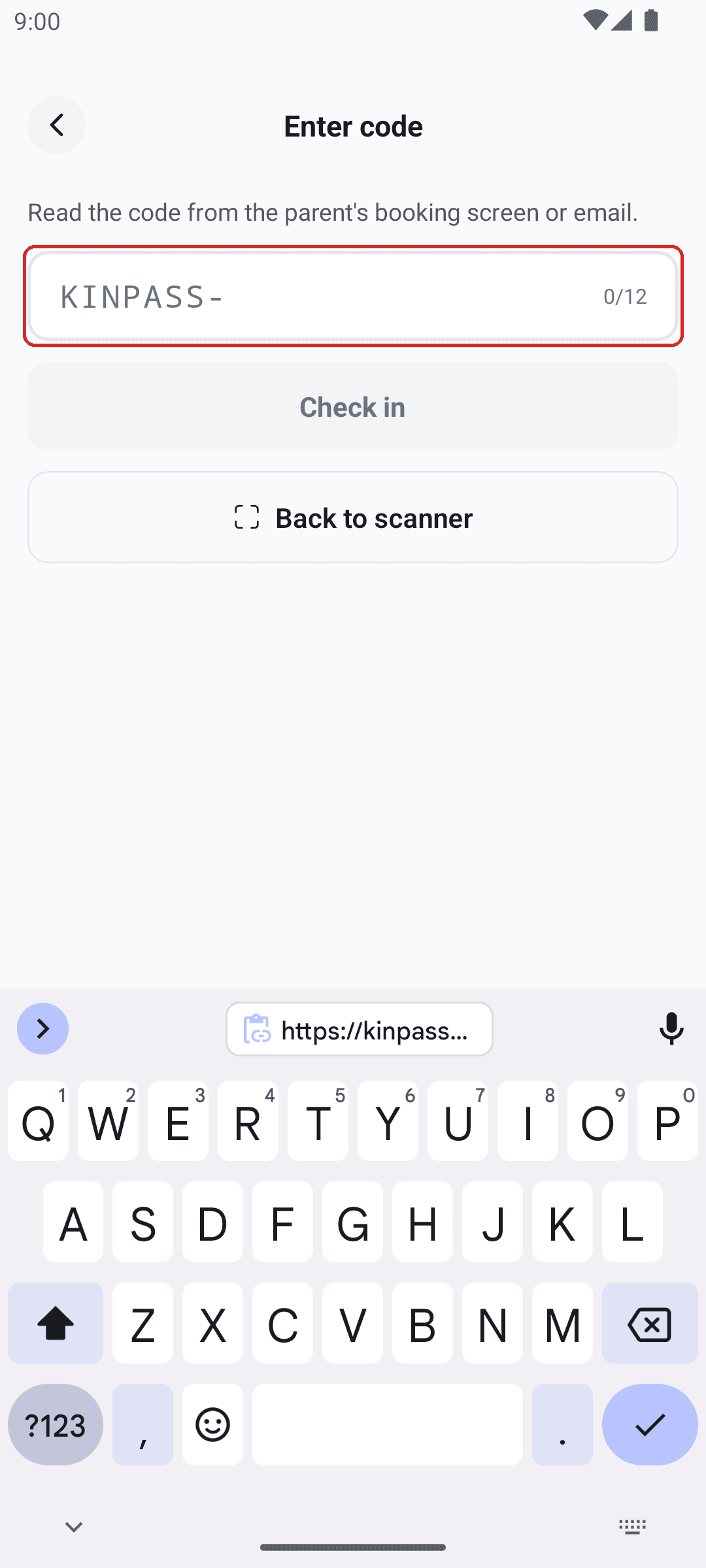
No camera? Type the check-in code
Use this when the camera won't focus, the light is bad, or the parent can only read the code out to you.
Every code starts with KINPASS- and is 12 characters long.
When something comes up
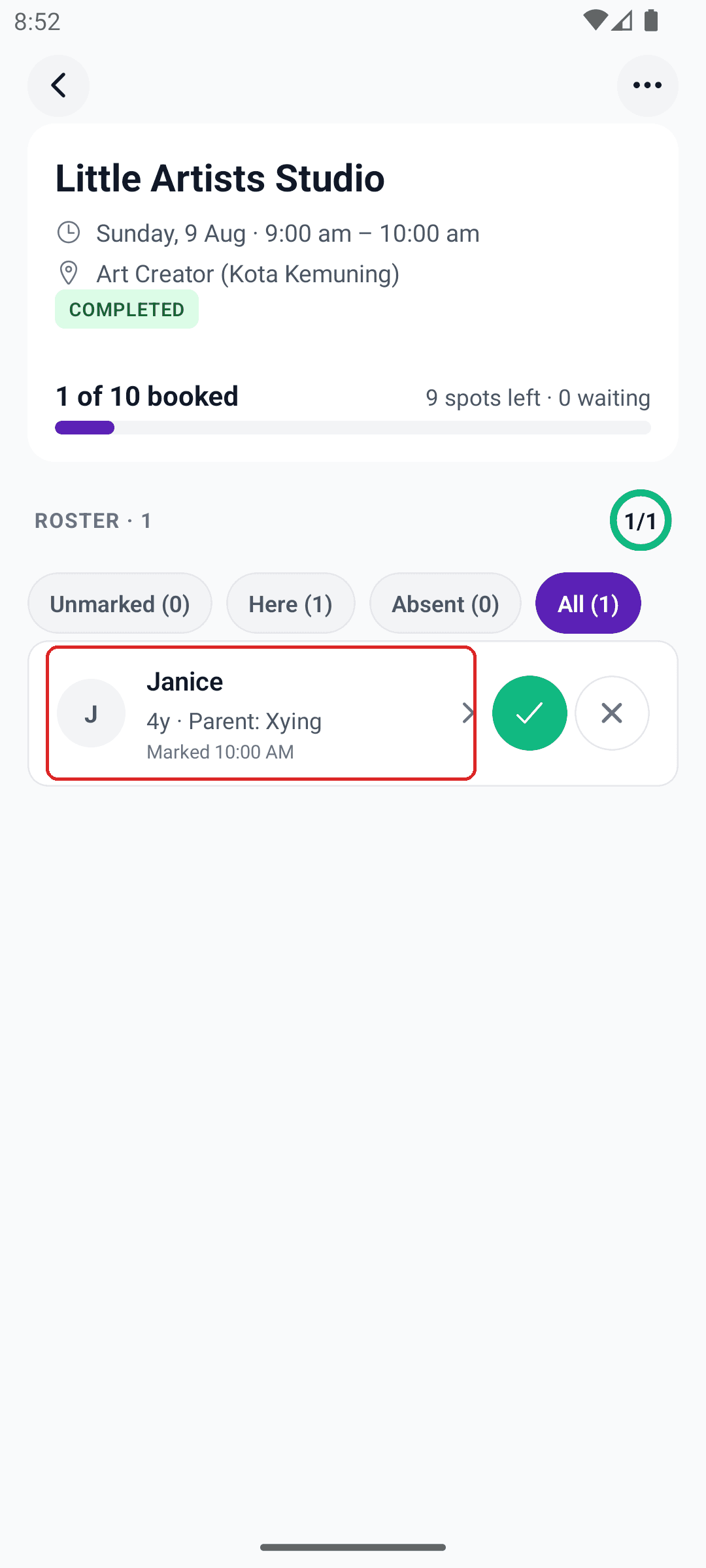
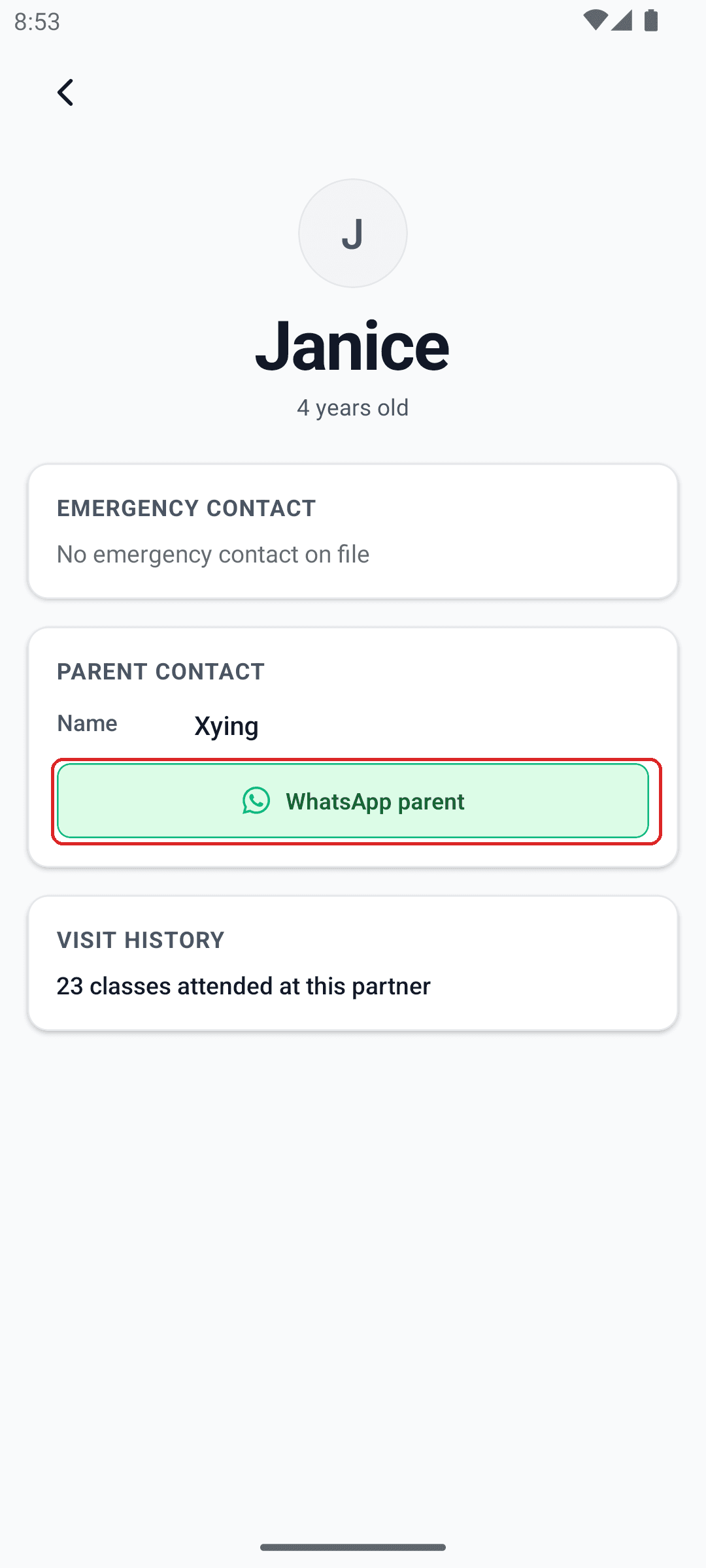
Tap a name for their safety details
Their card shows age, emergency contact, parent contact, and how many classes they've attended with you.
Report an injury, incident, or concern
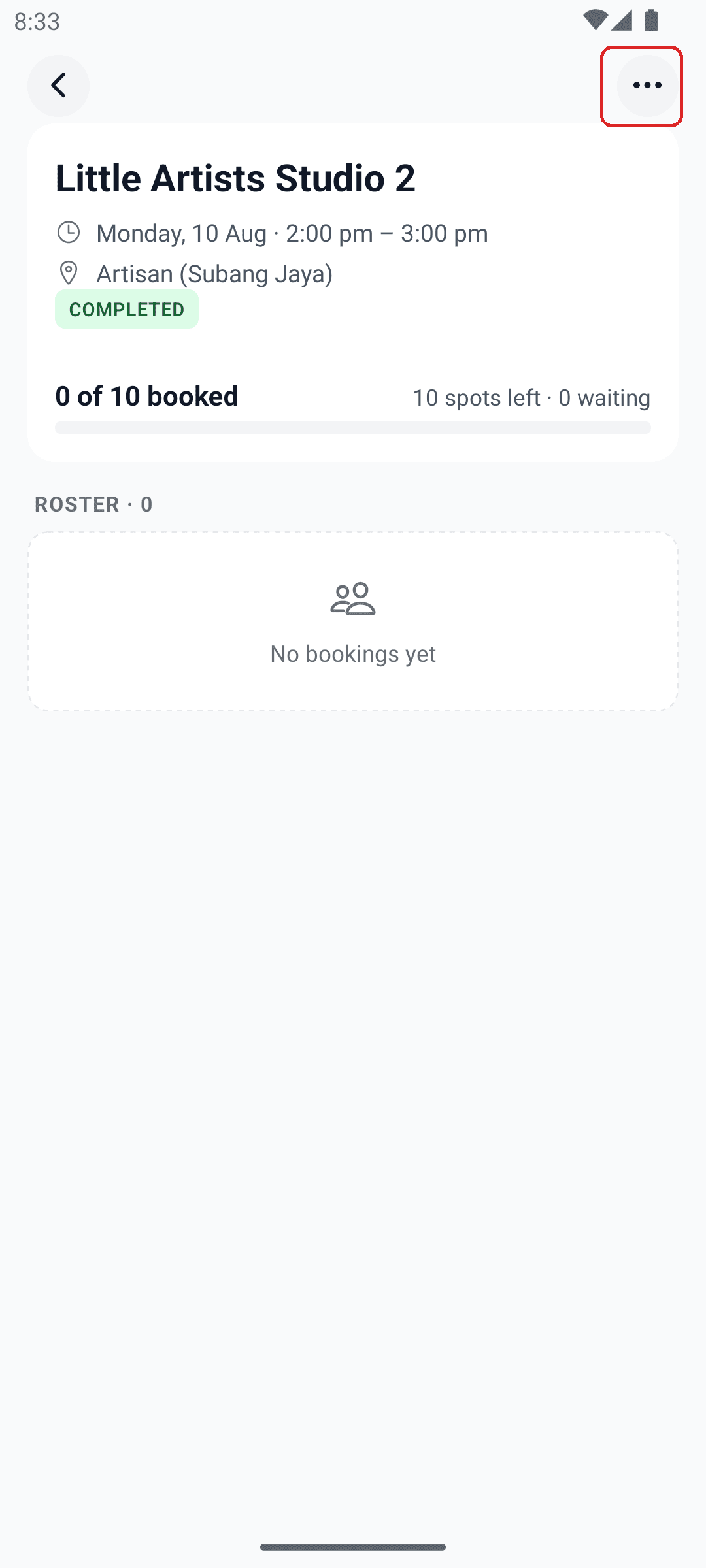
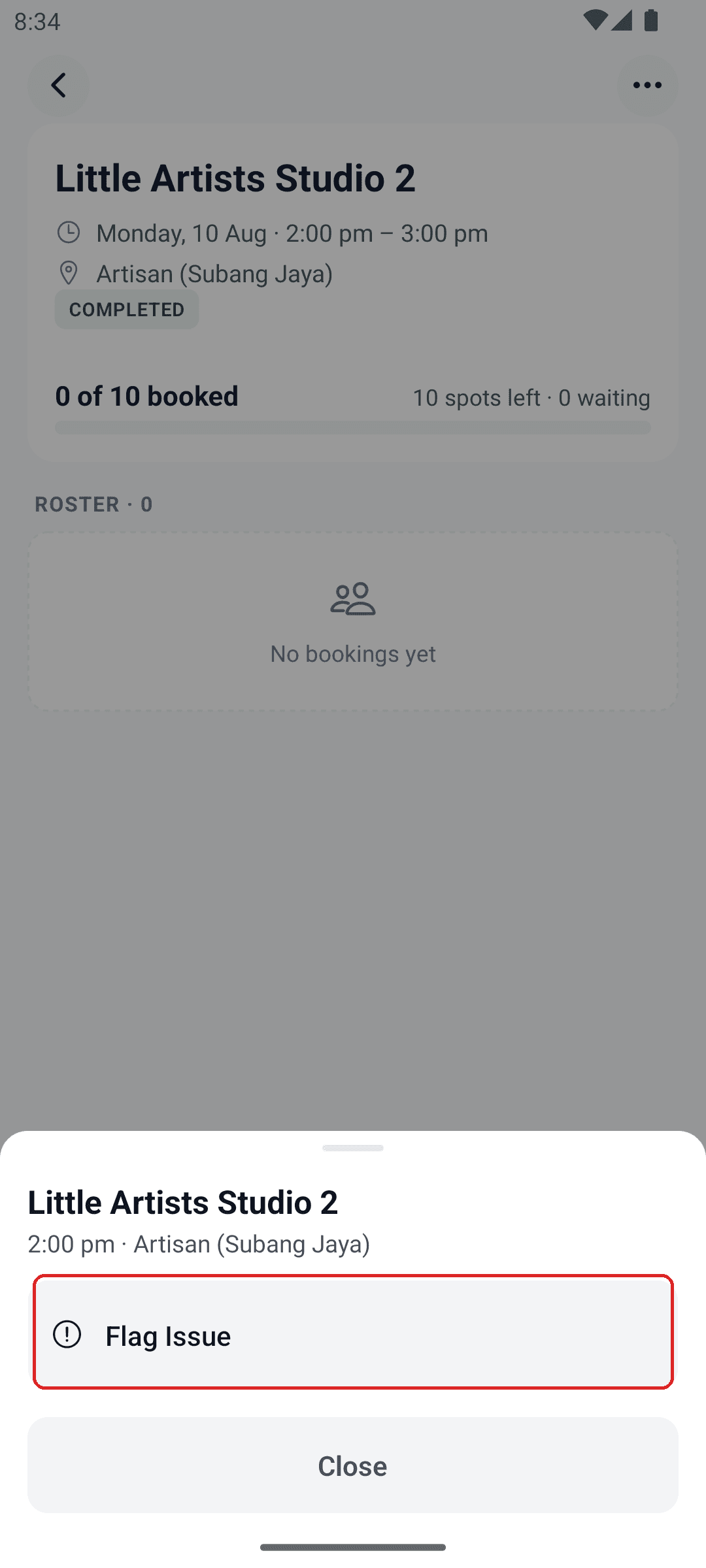
Flagging from inside the class fills in the class details for you. You can also start one from Profile → Flag Issue.
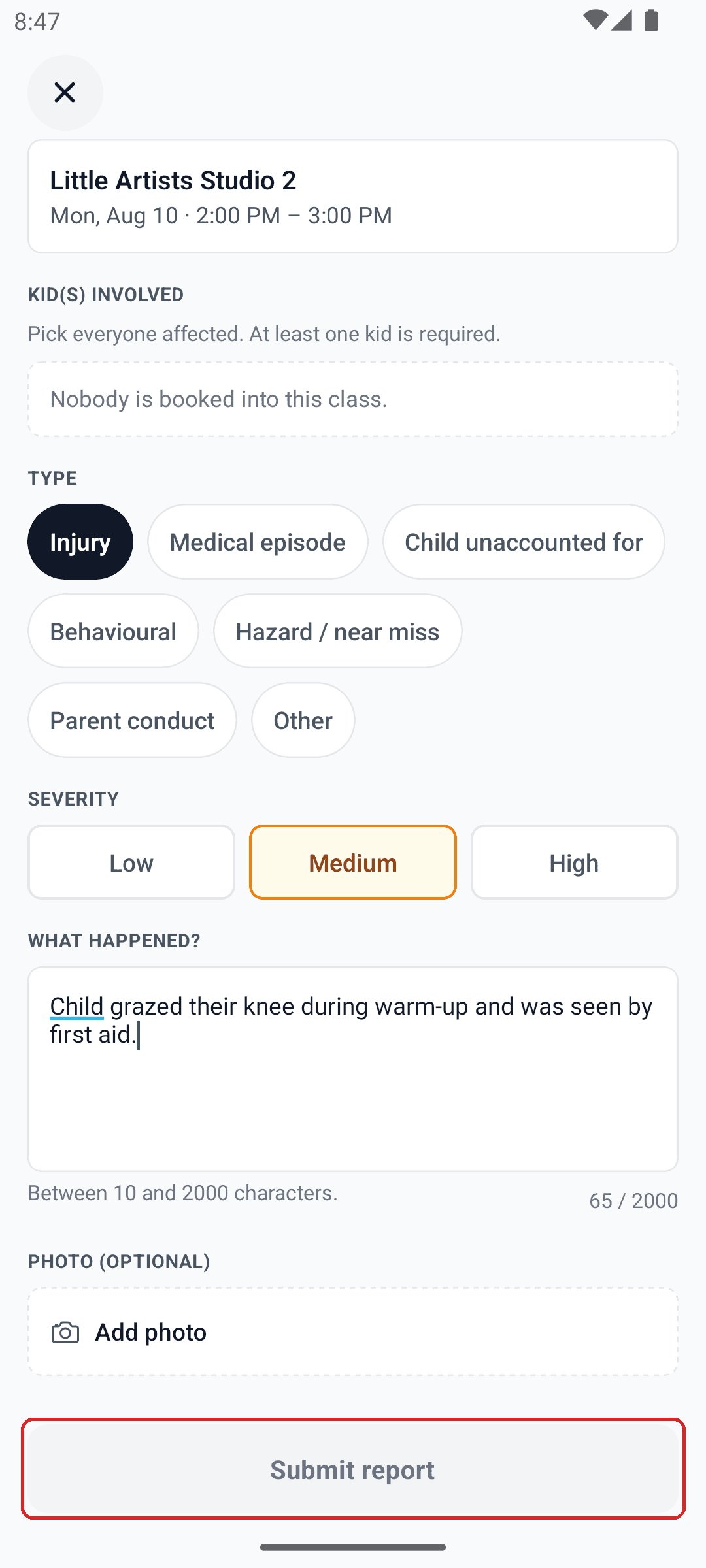
Pick who was involved, the type, and how serious it is. Describe what happened — what, when, who, and what you did. Add a photo if it helps.
KINPASS and your insurer rely on this report, so be specific.
Staying on top of things
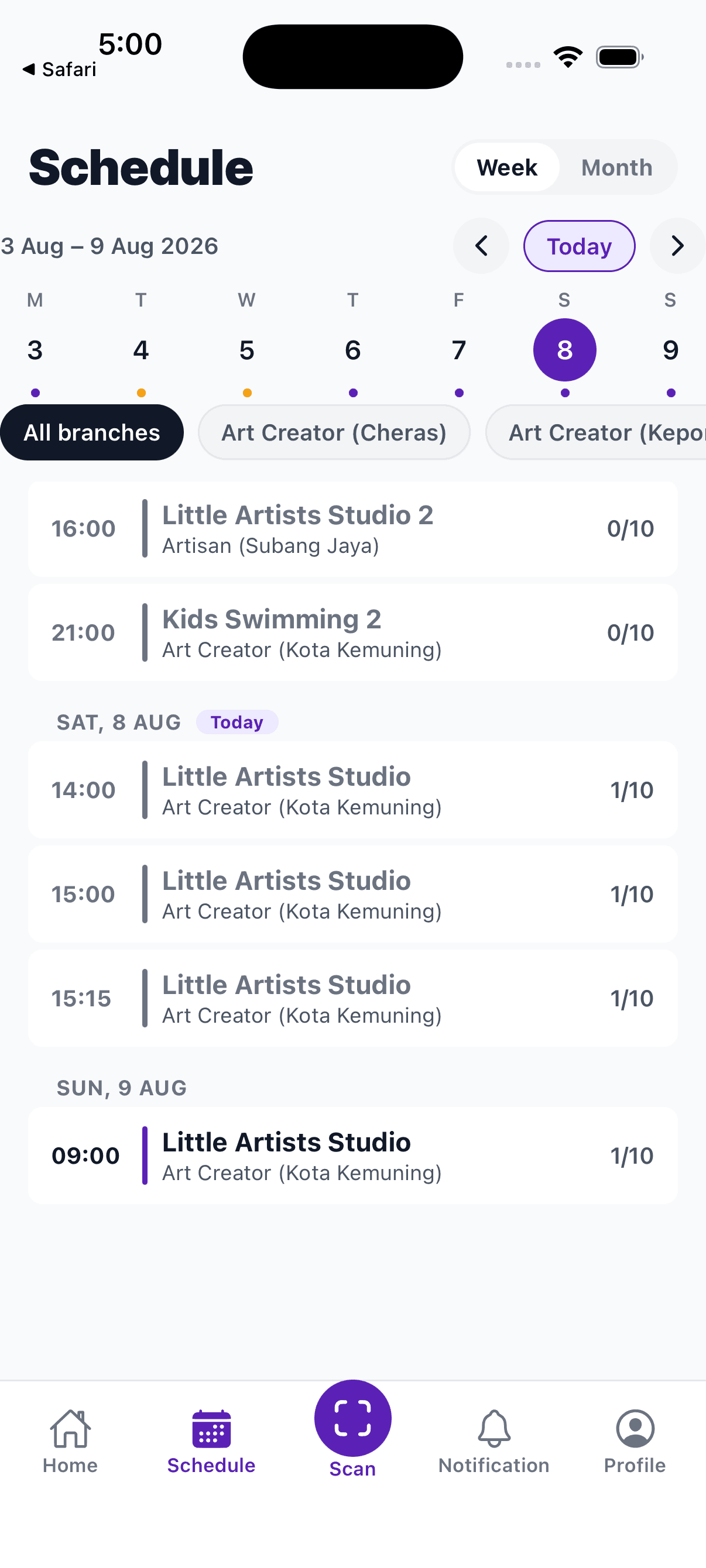
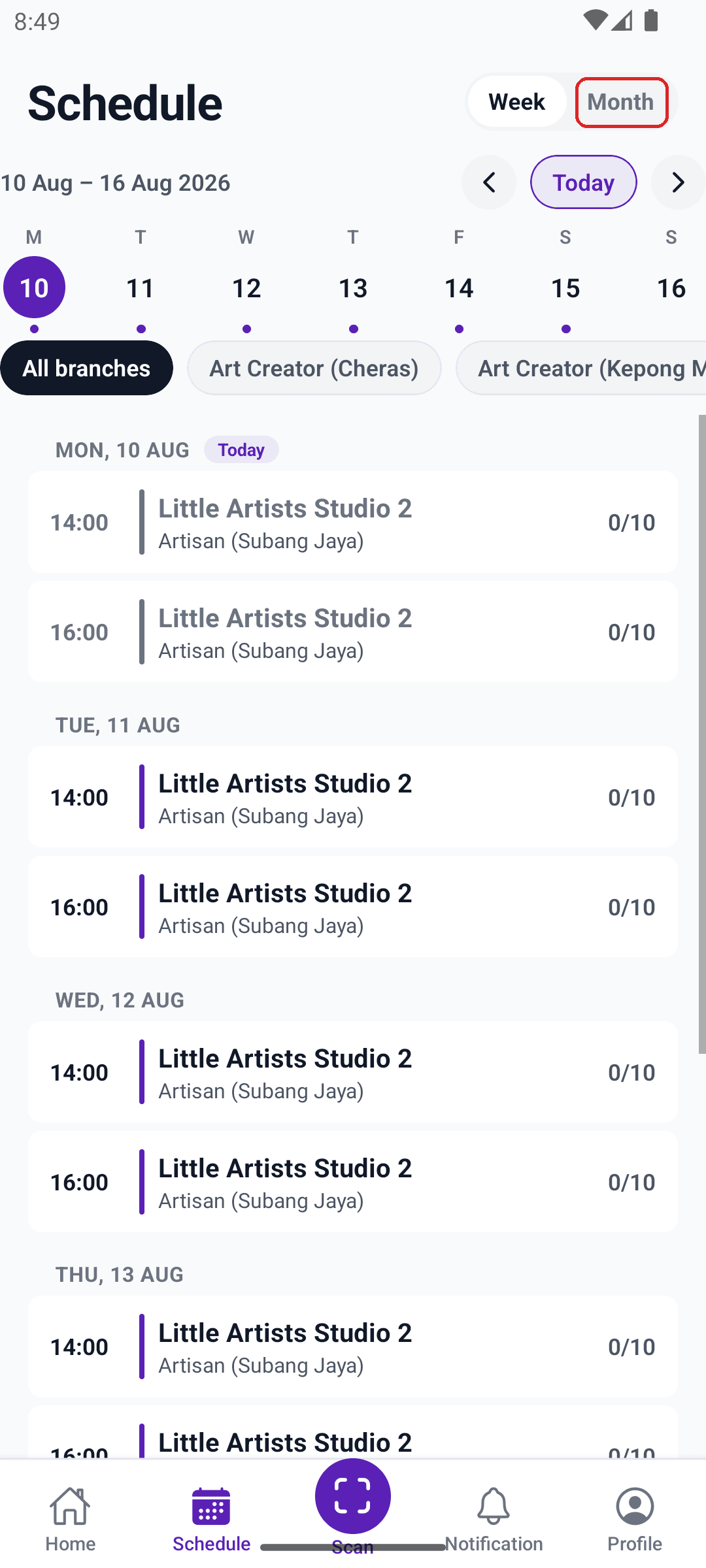
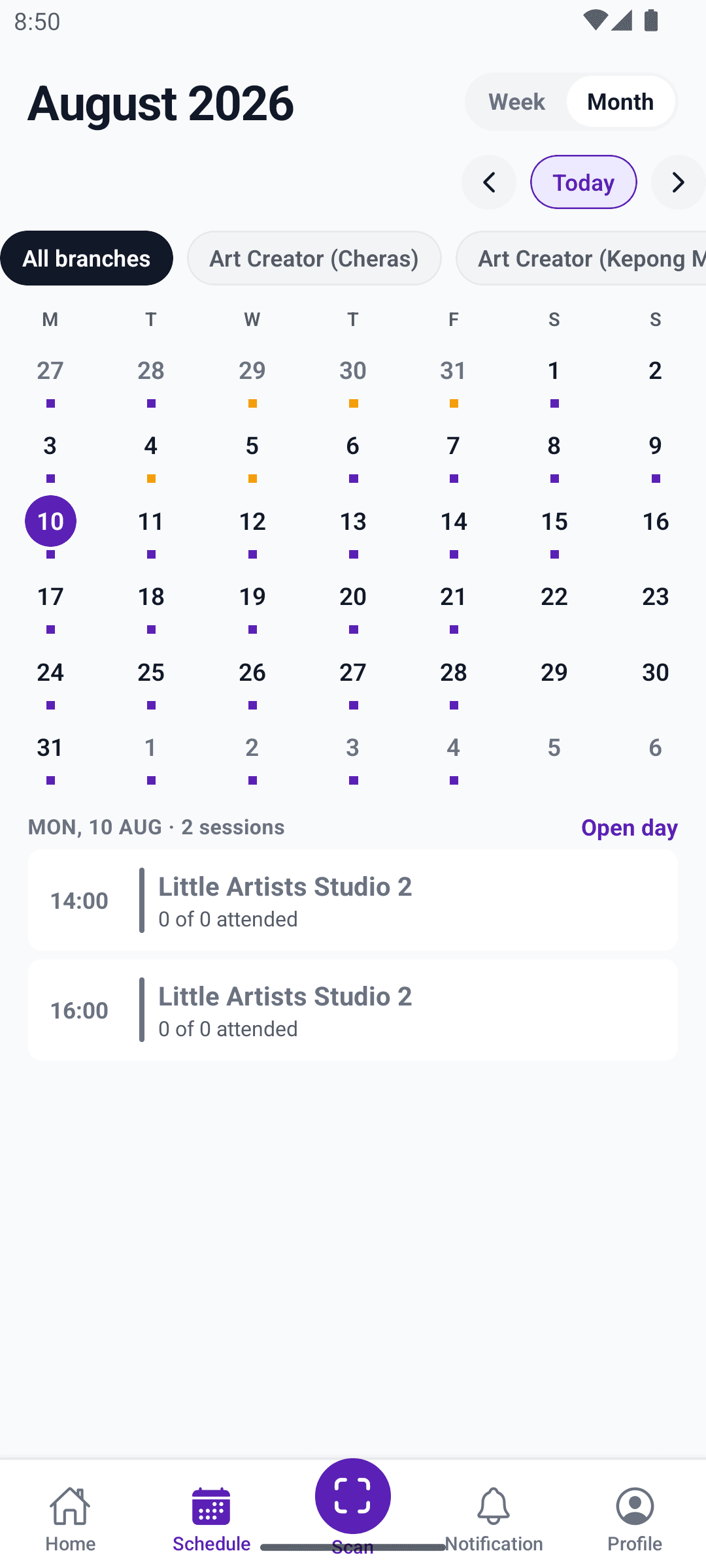
See the week, or the whole month
Tap Schedule for every class in the week ahead, with how many slots are booked out of the total.
Month view is for planning further out — spotting gaps or busy stretches before they arrive.
Don't miss a cancellation deadline
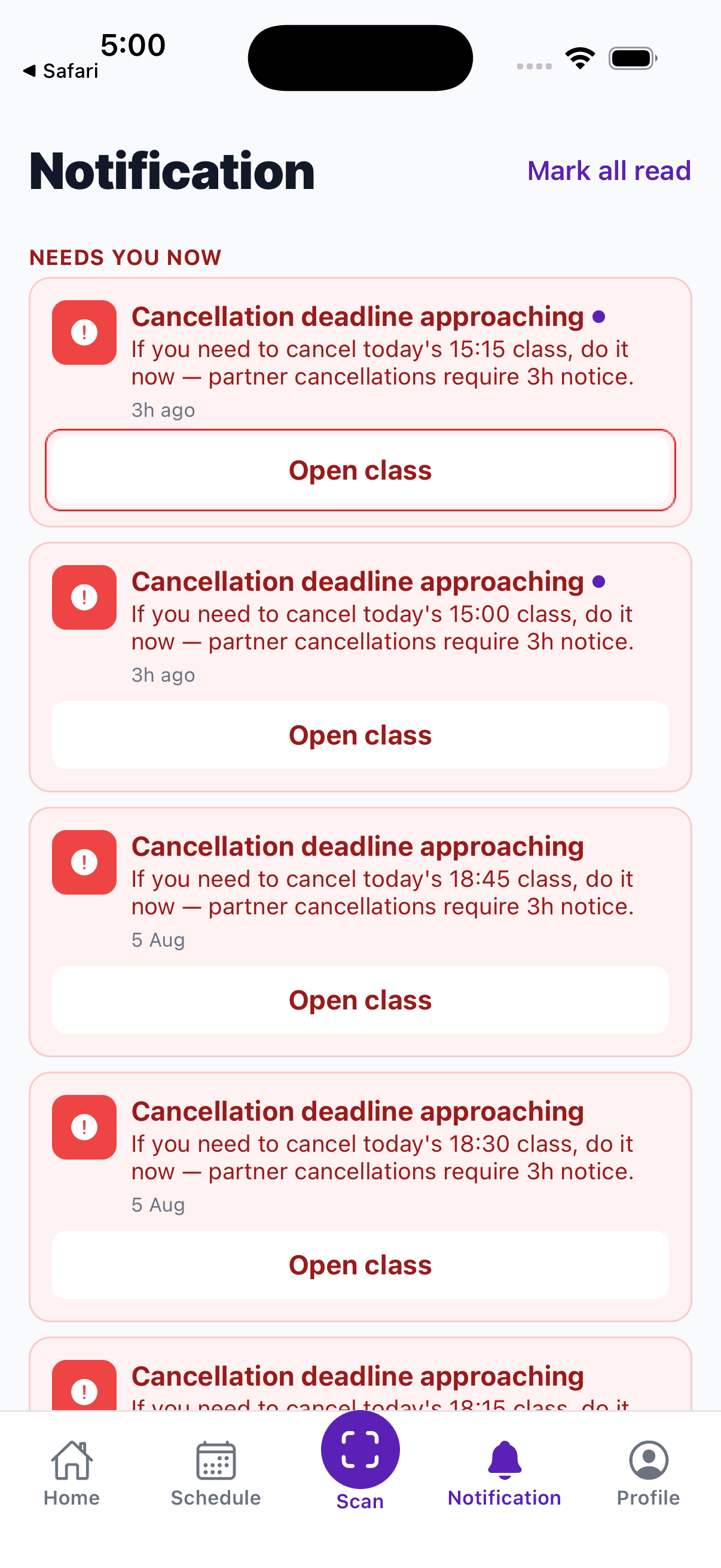
Tap Notification for anything needing your attention — most often a reminder that a cancellation window is closing on one of today's classes.
Tap “Mark all read” at the top once you've been through them.
See what parents said, and respond
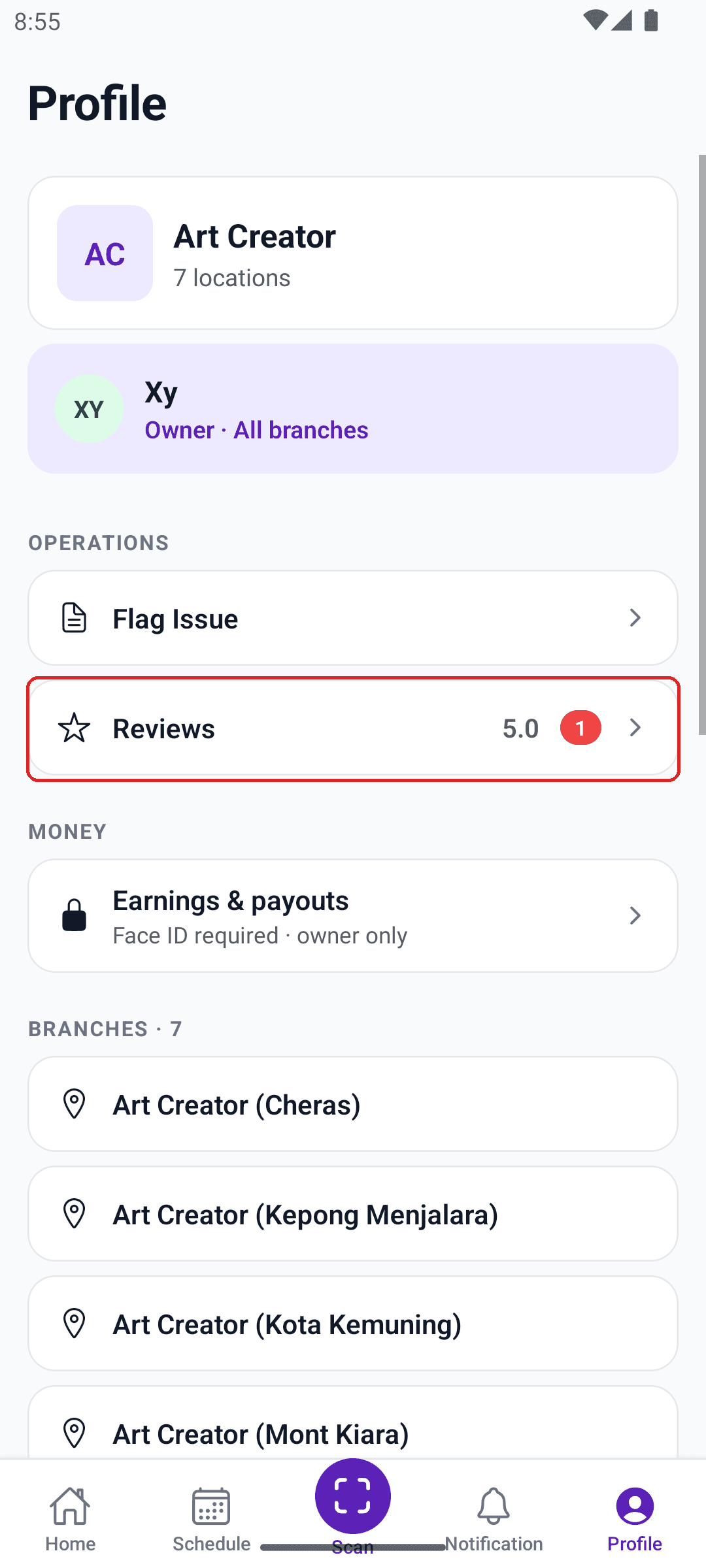
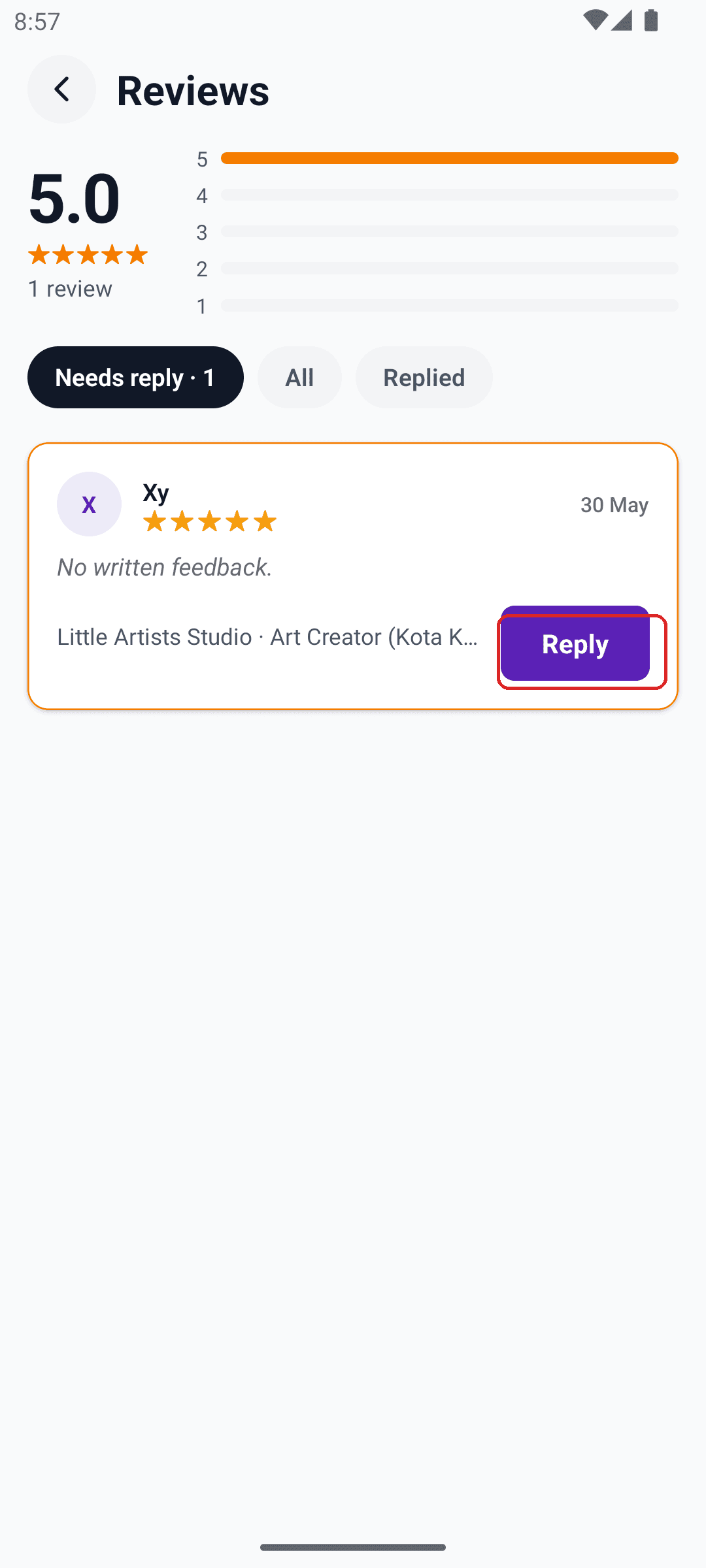
Profile → Reviews shows your overall rating and every review across your branches.
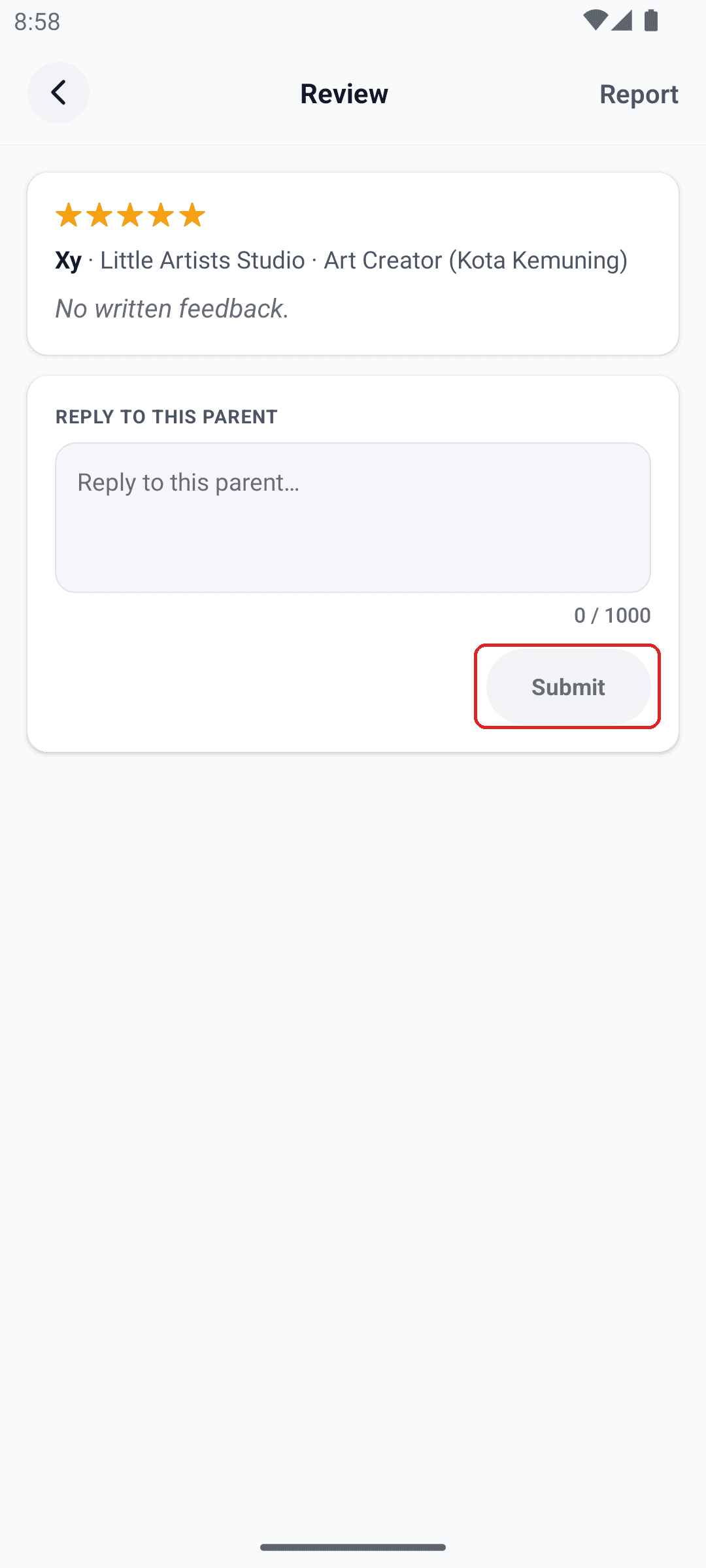
Replies appear under the parent's review on your venue page, so keep the tone warm and professional even for tricky feedback.
Money — owner only
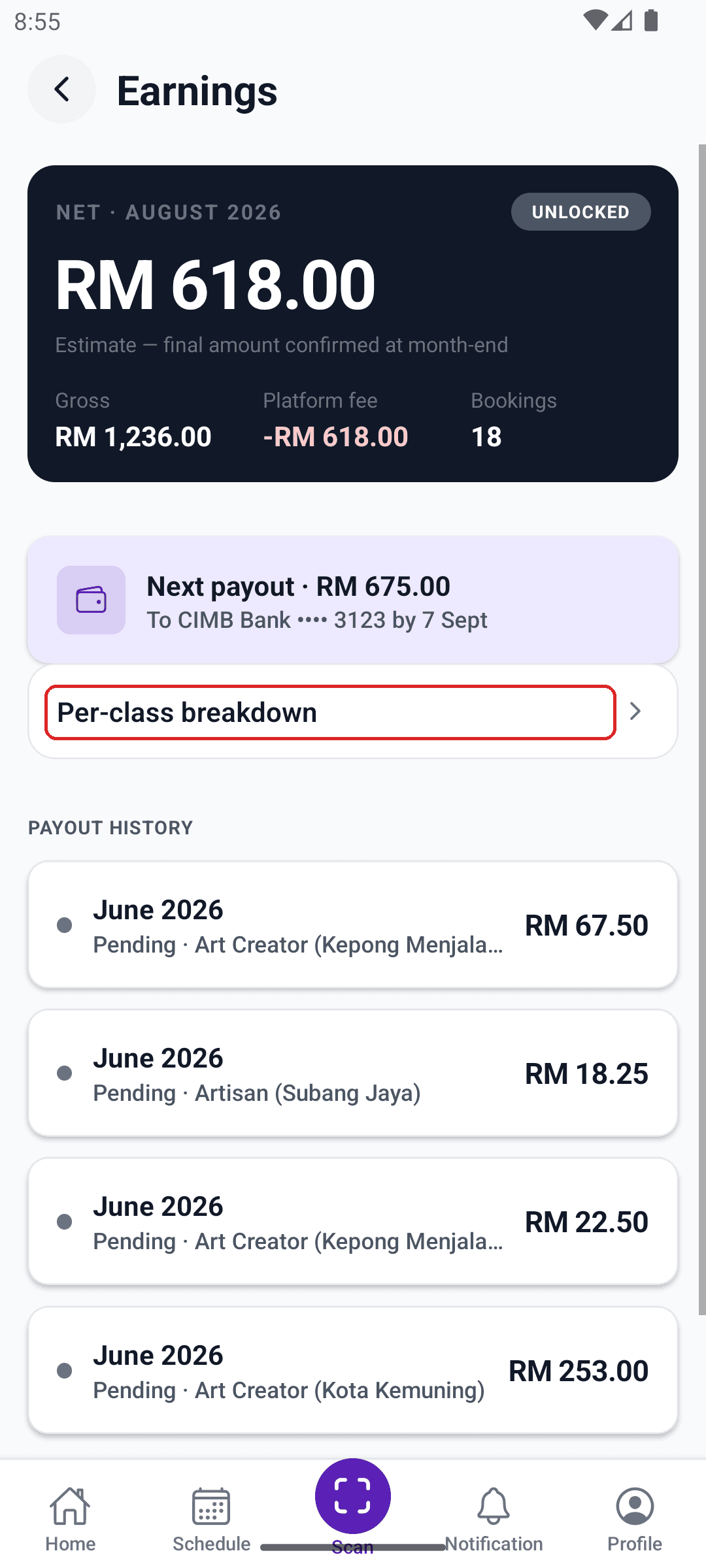
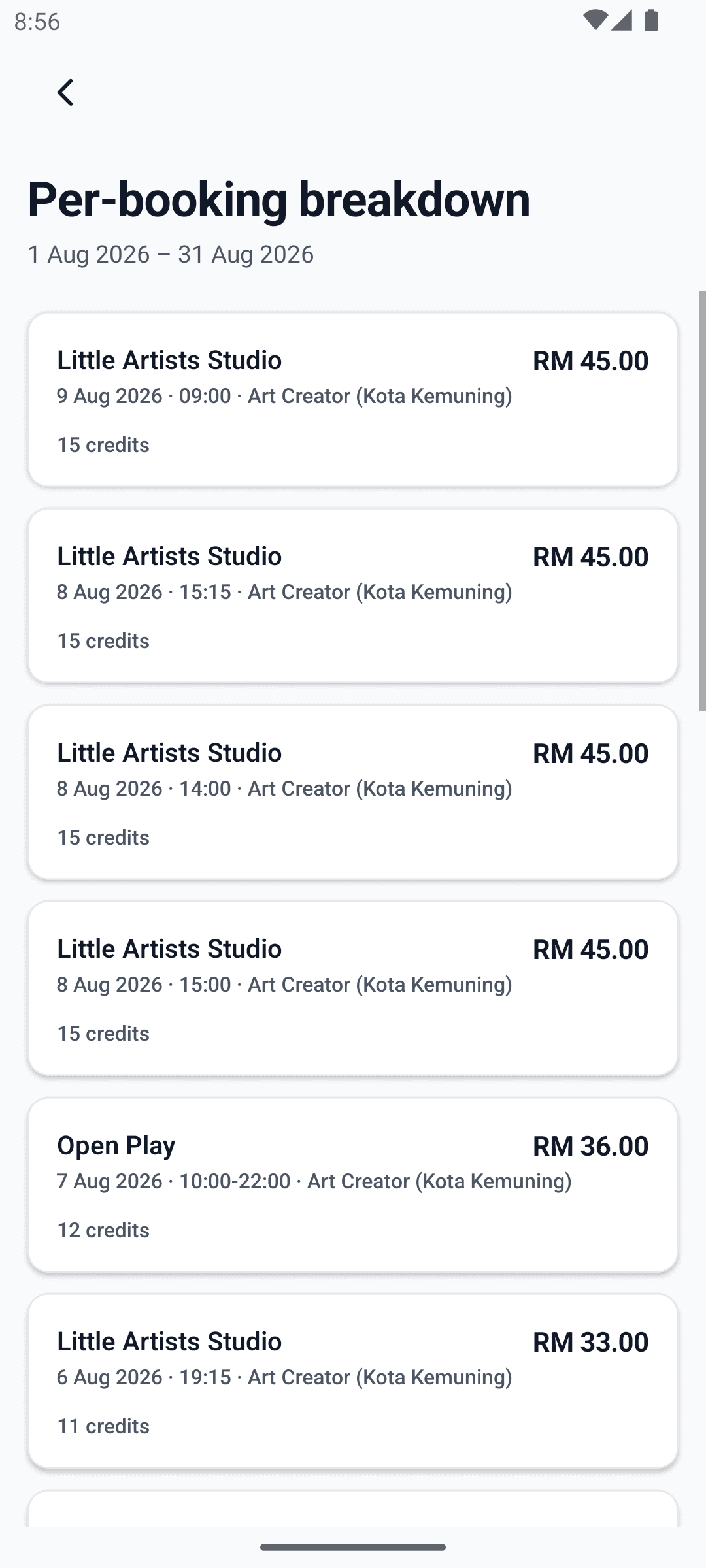
See what you're owed, and the bookings behind it
The top figure is an estimate for the current month, confirmed once the month closes. “Next payout” shows the amount and bank account for your most recent completed cycle.
Use the per-booking list to check a payout figure against your own records, or to spot a booking that looks off before the payout closes.
Your account
Everything under your account
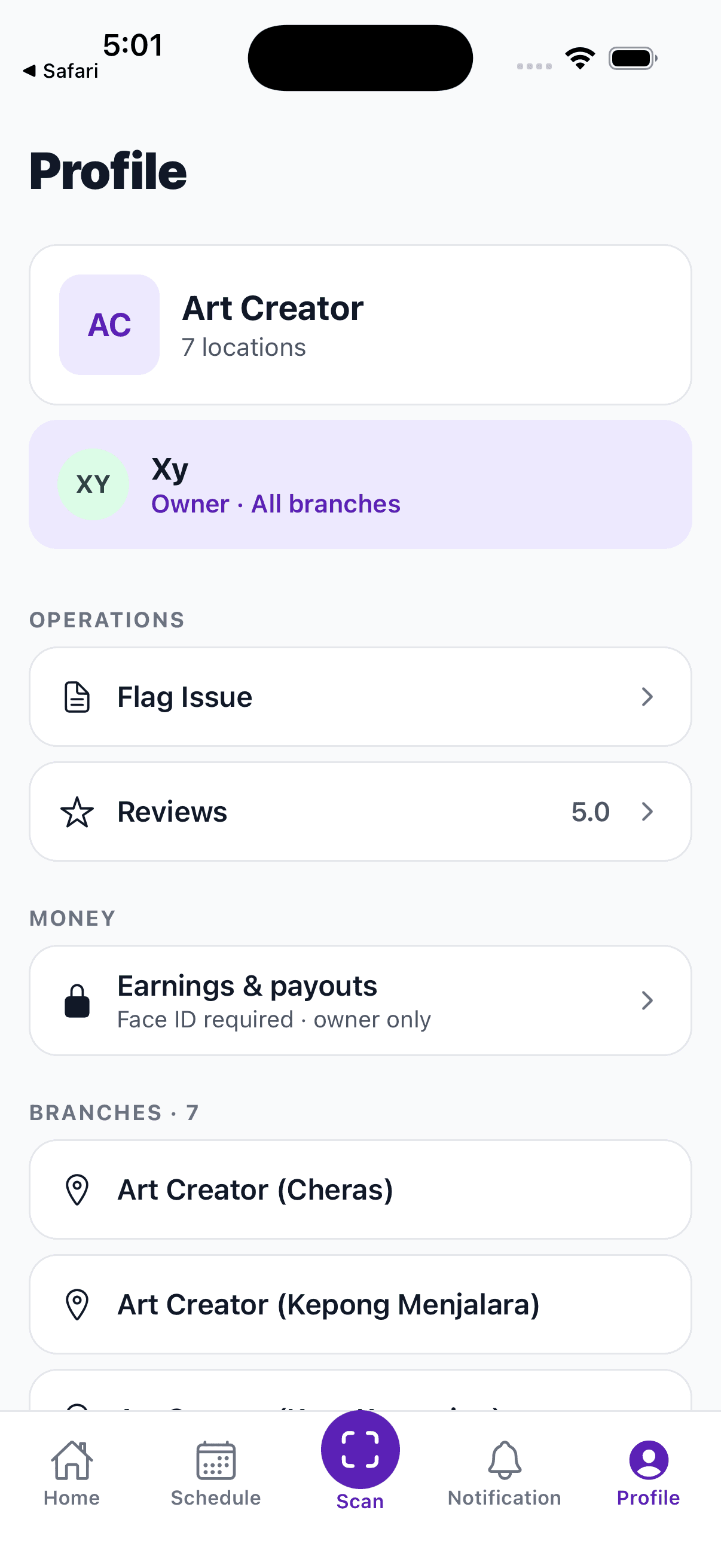
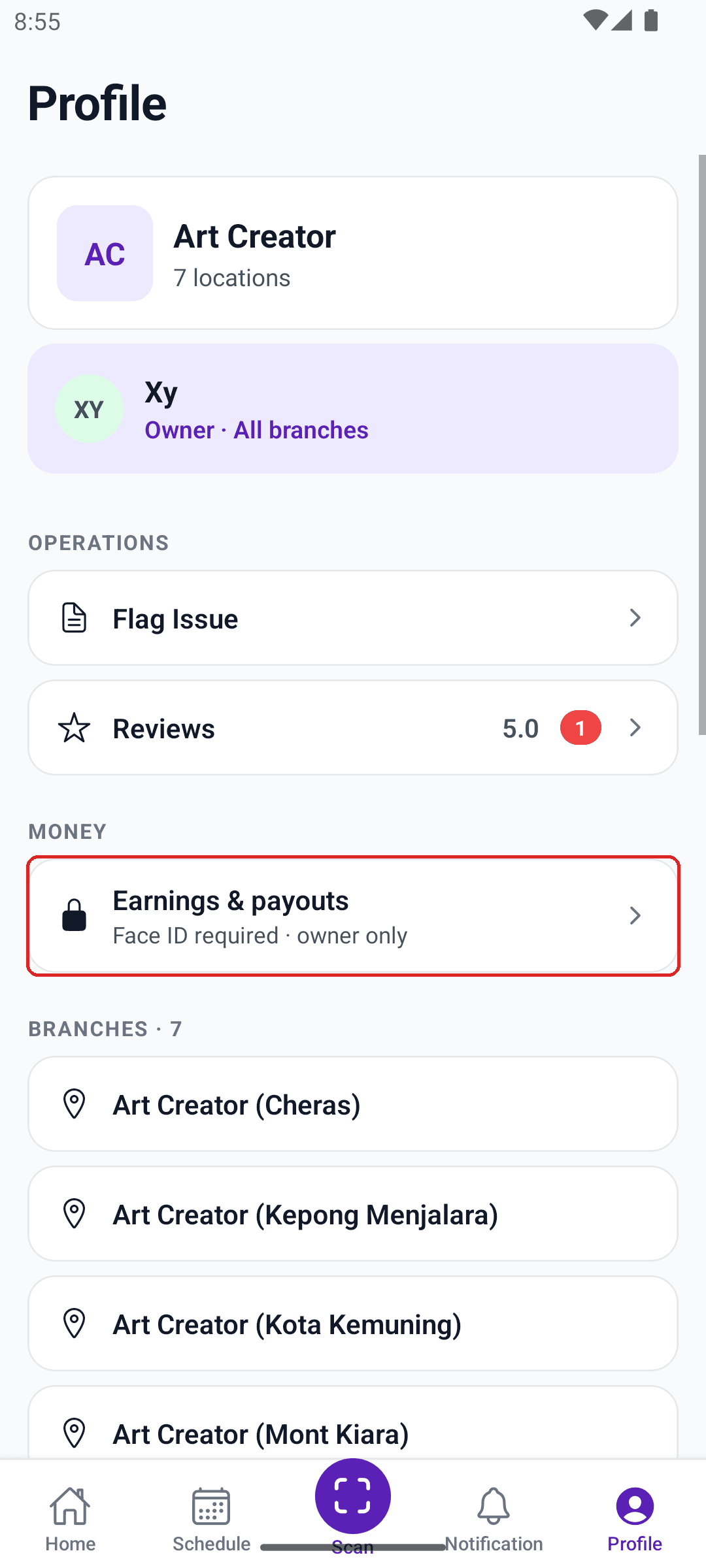
Tap Profile for every branch under your account, your overall review score, and a Flag Issue button for reporting something that isn't tied to a class you have open.
“Earnings & payouts” sits here too, but only opens for the account owner and needs Face ID.